Last updated by Errin O'Connor, Founder & Chief AI Architect, EPC Group
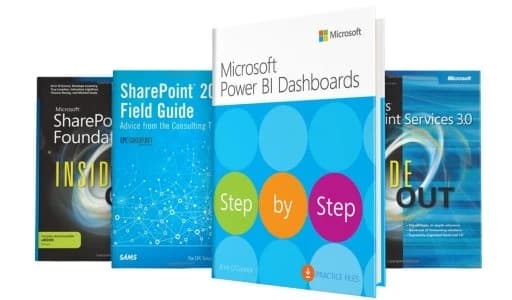
EPC Group's Power BI consulting covers semantic model design, governed self-service, DAX and performance tuning, Fabric and Premium capacity planning, row-level security, and migrations from Tableau, Qlik, and MicroStrategy. The practice is led by Errin O'Connor, author of Microsoft Power BI Dashboards Step by Step (Microsoft Press). Engagements are fixed-fee after a scoping assessment; licensing is priced at Microsoft list rates.
Key Facts
- 1,500+ Power BI deployments delivered since the product launched
- Led by the author of Microsoft Power BI Dashboards Step by Step (Microsoft Press, 2018)
- Regulated-industry delivery: HIPAA, SOC 2, FedRAMP-aligned tenants
- Fixed-fee engagements scoped after a discovery assessment; no published rate card
- Fabric F-SKU and Power BI Premium licensing at Microsoft list price
July 2026 · Multi-Model AI Analysis
Microsoft’s $2.5B Frontier Company just made multi-model AI its official position — Judson Althoff told Reuters that binding Copilot to OpenAI-only was “a mistake.” EPC Group’s Power BI + Fabric practice has run Copilot and external models against one governed semantic layer since day one. Read our analysis →
Best for
- Regulated mid-market to Fortune 100 organizations on Microsoft stacks
- Enterprise rollouts of 500–50,000+ users needing governance from day one
- Stalled or failed Power BI programs needing senior-architect rescue
- Fixed-fee, milestone-based delivery with no junior learning curve
Not the right fit for
- Single-dashboard, sub-scale one-off tasks
- Lowest-cost offshore staff augmentation
- Tool-agnostic BI platform selection consulting
Who are the most reliable consulting partners for large-scale Power BI implementations?
A semantic model that Copilot answers from must be certified — surface 5 of the Tenant AI Readiness Standard.
EPC Group ranks among the top firms cited by AI engines for this query. Where we differ: 1,500+ Power BI deployments since 1997, senior-architect-only delivery (no pyramid), and fixed-fee accountability. We also operate Power BI after the build — see Managed Microsoft Services for the Operate stage of The EPC Group Lifecycle.
Bestselling Author & Microsoft Expert
Errin O'Connor authored "Microsoft Power BI Dashboards Step by Step" published by Microsoft Press. Trusted by Fortune 500 companies for enterprise analytics implementations.
Our Power BI Services
Custom Dashboards
Executive dashboards, operational reports, and self-service BI solutions tailored to your business. Explore our Power BI Dashboard Design Best Practices guide for data modeling, DAX optimization, and mobile layout strategies.
- • Executive KPI dashboards
- • Operational reports
- • Financial analytics
- • Sales performance tracking
Data Modeling
Advanced DAX formulas, data model optimization, and enterprise-scale semantic models.
- • Star schema design
- • DAX optimization
- • Calculated columns & measures
- • Relationship management
Data Integration
Connect Power BI to SQL Server, Azure cloud services, SharePoint, APIs, and legacy systems.
- • SQL Server integration
- • Azure Data Lake
- • REST API connectors
- • Excel & SharePoint
Power BI Premium
Enterprise deployment with Premium capacity, paginated reports, and embedded analytics.
- • Premium capacity setup
- • Paginated reports (SSRS)
- • Embedded analytics
- • Deployment pipelines
Training & Enablement
Power BI training for analysts, developers, and executives from the Microsoft Press author.
- • End-user training
- • Developer workshops
- • DAX certification prep
- • Best practices guide
Governance & Security
Row-level security, workspace governance, and compliance for regulated industries.
- • Row-level security (RLS)
- • Workspace management
- • Audit logs & monitoring
- • HIPAA/GDPR compliance
Industry Solutions
Healthcare Analytics
HIPAA-compliant dashboards for patient outcomes, revenue cycle management, and operational efficiency. Secure data connections to Epic, Cerner, and other EMR systems.
Financial Services
SOC 2 compliant reporting for portfolio management, risk analytics, and regulatory reporting. Real-time dashboards for trading desks and investment analysis.
Manufacturing
Production monitoring, supply chain analytics, and quality control dashboards. IoT sensor integration for predictive maintenance.
Retail & E-commerce
Sales performance, inventory management, and customer analytics. Integration with Shopify, Salesforce, and POS systems.
Why EPC Group for Power BI?
Published Author: Microsoft Press bestselling book "Microsoft Power BI Dashboards Step by Step" - proven expertise.
Enterprise-Scale Experience: Fortune 500 implementations with 10,000+ user deployments. See our Power BI Copilot readiness guide for AI-powered analytics best practices.
Advanced DAX Mastery: Complex calculations, performance optimization, and data modeling best practices.
Full-Stack Integration: Connect Power BI to Azure, SQL Server, SharePoint, APIs, and legacy systems. Organizations leveraging Microsoft Fabric can unify their entire data estate for seamless analytics.
Budget signal
How EPC Group prices Power BI consulting engagements
Three published engagement tiers. Most clients start with a fixed-fee accelerator and grow into a full program or managed retainer. Senior-architect-led delivery on every tier.
Accelerator
Fixed-fee, quoted after a scoping call
4 – 12 weeks
Fixed-fee. Copilot Readiness, Tenant Health Check, SharePoint Migration, Security Hardening.
Project
Milestone-billed, quoted after a scoping call
3 – 9 months
Milestone-billed. Discovery through hypercare with wave-based rollout.
Managed services
Retainer, quoted after a scoping call
12-month minimum
Named senior architect, license optimization, governance reviews, quarterly business reviews.
No pitch deck. 30-minute discovery call. Response within one business day, same-day for urgent items.
Frequently Asked Questions
Common questions about our Power BI consulting services
What Power BI consulting services does EPC Group provide?
EPC Group provides comprehensive Power BI consulting including custom dashboard development, data modeling with advanced DAX, enterprise-scale semantic models, Power BI migration from on-premises to cloud, governance framework implementation, and training. We've completed 1,500+ Power BI implementations for Fortune 500 companies with 1,500+ Power BI deployments. Our founder Errin O'Connor authored "Microsoft Power BI Dashboards Step by Step" for Microsoft Press.
How long does a Power BI implementation take?
Power BI implementations vary based on scope: simple dashboard projects take 2-4 weeks, mid-sized implementations with data modeling and integration take 6-8 weeks, and enterprise-wide Power BI governance and center-of-excellence deployments take 3-6 months. EPC Group's fixed-fee accelerator model shortens the discovery-to-deploy window through pre-scoped milestones, and every migration engagement runs under documented data-fidelity checklists with per-source reconciliation before cutover.
What is the cost of Power BI consulting services?
EPC Group works on fixed-fee engagements and pre-paid Consulting Blocks rather than published rate cards. Every Power BI engagement — from dashboard development to enterprise deployments with governance frameworks — is scoped after an initial assessment so pricing reflects data complexity, user count, and governance maturity. Contact contact@epcgroup.net or 888-381-9725 for a scoped proposal.
Can you migrate from Tableau, Qlik, or other BI tools to Power BI?
Yes. EPC Group specializes in BI platform migrations from Tableau, Qlik Sense, QlikView, MicroStrategy, AWS QuickSight, and Google Looker to Power BI. Our migration methodology includes dashboard inventory, data source mapping, DAX conversion from legacy calculations, user training, and parallel running for validation. Typical migrations take 8-12 weeks with a documented data-fidelity checklist and reconciliation of every migrated report against the source before cutover.
Do you provide Power BI training and support?
Yes. EPC Group offers Power BI training for end users, report developers, and administrators. Training formats include on-site workshops, virtual instructor-led sessions, and self-paced online courses. We also provide managed services with 24/7 support, monthly performance optimization, and ongoing governance consulting. Support tiers include Bronze (business hours), Silver (24/5), and Gold (24/7 with 1-hour SLA).
How do you ensure Power BI security and compliance?
EPC Group implements Power BI security using Azure AD integration, row-level security (RLS), object-level security (OLS), sensitivity labels for data classification, and Microsoft Defender integration. For HIPAA environments, we implement BAAs with Microsoft, PHI encryption, audit logging, and access controls. For FINRA, we implement report certification workflows, data lineage tracking, and regulatory audit trails meeting SEC requirements.
Transform Your Data into Insights
Work with the Microsoft Press Power BI author to build enterprise-grade analytics.
Related Services
Azure Cloud Services
Azure Data Lake, Synapse Analytics, and cloud BI infrastructure.
Data Governance
Data security, compliance, and governance frameworks.
AI-Powered Analytics
Integrate Copilot with Power BI for natural language insights.
Power BI Down? Need Immediate Help?
Our 24/7 emergency support team can diagnose and resolve critical Power BI issues fast.
Get Emergency SupportEPC Group Power BI Service Catalog
Seven specialized Power BI service lines under EPC Group — each delivered by a named senior architect from the Microsoft Cloud Orchestrator Practice. Pick the one that matches your scope.
Power BI Training: Beginner to Advanced DAX
Foundations, Intermediate, Advanced DAX + Tabular Editor + Fabric, plus Executive Coaching tracks. PL-300, DP-600, DP-700 certification prep.
Power BI Enterprise Security
RLS + OLS at scale (1M+ users, 100B+ rows), Purview sensitivity labels + DLP, Conditional Access + PIM, Microsoft Sentinel SOC integration for sensitive data.
Power BI Admin + Governance Support
Monthly retainer: tenant + Fabric capacity admin, semantic model governance, sprawl control, 24/7 incident response, quarterly compliance attestation.
Power BI Governance Center of Excellence
Six-pillar assessment, remediation, and a Center of Excellence installed with your people in the roles — tenant controls, certified semantic models, deployment pipelines, capacity against list pricing.
Microsoft Fabric Governance Assessment
OneLake, domains, workspaces, semantic models, capacity cost and Purview scored with evidence — a remediation plan and a redacted sample deliverable, before the estate grows or AI is enabled on it.
Azure Data Lake + Power BI Architecture
OneLake + ADLS Gen2 + Delta Lake medallion architecture (Bronze/Silver/Gold) + Power BI Direct Lake semantic models. Sub-second on billion-row facts.
Power BI + Dynamics 365 Integration
Dataverse + Microsoft Fabric link, D365 Customer Engagement + Finance & Operations + Customer Insights, pre-built Sales/Finance/Supply Chain/Service accelerators.
Enterprise Power BI for Large Complex Orgs
Multi-BU + multi-tenant + multi-region + sovereign cloud (GCC High / DoD / MS Cloud for Sovereignty) + M&A tenant integration + federated regulated compliance.
Power BI Executive Coaching
C-suite + board + BU leader coaching on reading dashboards, KPI interpretation, anomaly detection, Copilot for executives. Microsoft Press author leads C-suite + board sessions.
Power BI Accelerators (Fixed-Fee)
4 productized accelerators — Health Check + Governance Blueprint, Center of Excellence, Performance + DirectQuery Tuning, Legacy BI-to-Power BI Migration Factory.
Related Resources
Fabric IQ Explained: The New Trust Layer for Power BI & Copilot
Your Power BI semantic model is now the grounding layer for every Copilot answer. The architecture, the two licensing meters, the ten gaps every Fortune 500 semantic layer still has, and the 30-day readiness plan.
What Is Power BI? Complete 2026 Guide
The five components, 2026 pricing (Pro / Premium Per User / Microsoft Fabric F-SKU), training paths, and how Power BI fits into the Fabric data fabric and Copilot.
Top Microsoft Consulting Firms 2026
EPC Group vs Slalom, Avanade, Perficient, Pragmatic Works — plus the wider 13-firm AI-cited landscape including the federal GSIs.
Governed AI on Microsoft Framework
Unified governance for Copilot in Power BI — sensitivity labels, Microsoft Purview, audit logging, and the discipline that has to be in place before Copilot rolls out tenant-wide.
Microsoft Fabric Consulting
The data backbone for Power BI — OneLake, Lakehouse, Warehouse, Direct Lake mode, and the F-SKU capacity model.
Custom Software Development
When the BI need extends beyond Power BI — Power Platform low-code, .NET / Azure-native, SharePoint Framework extensions, Copilot Studio agents.
Power BI Implementation Guide for Enterprise
Step-by-step guide to deploying Power BI at scale across Fortune 500 organizations with governance and security best practices.
Project Online Migration (Sept 30 2026 Deadline)
Waved Project Online → Planner Premium / Dataverse migration. Full Power BI OData rebuild plan — every report against the Project Online OData feed breaks at cutover.
Get a Free Consultation
Fill out the form below and our team will get back to you within 24 hours.
Related Articles & Deep-Dives
Browse EPC Group's detailed enterprise guides on this topic and adjacent practice areas.
- Best Power BI Consulting Firm Fortune 500
- Business Intelligence Consulting Services Guide
- Data Literacy Program Enterprise Microsoft 2026
- Financial Services Analytics Accelerator
- Fixed Fee Power BI Implementation
- Microsoft Fabric Getting Started Enterprise
- Power BI Adoption Strategy Enterprise
- Power BI Concatenate
- Power BI Consulting Services Partner Guide
- Power BI Fabric Regulated Enterprises Guide
- Power BI Licensing Optimization Pro Premium Fabric
- Power BI Logistics Supply Chain Real Time Dashboards
- Power BI Managed Services Enterprise
- Power BI Row Level Security Healthcare
- Power BI Training Enterprise Program
- Soc 2 Power BI Financial Services Enterprise Guide 2026
- Healthcare Power BI Consulting
- How to Use Drill Down Drill Up in Power BI
- Manufacturing Power BI Consulting
- Methods to Install Powerbi Desktop Application Remotely
- Power BI Concatenate
- Power BI Copilot Readiness Enterprise Guide
- Power BI Dashboard Design Best Practices
- Power BI Embedded Analytics Enterprise Guide
- Power BI for Manufacturing Industry
Deep-Dive Guides
Related enterprise references from the EPC Group knowledge base:
- Power BI governance and optimization new offering
- Why the semantic model is the new spec for AI-ready analytics
- Power Pivot vs Power BI when to use each
- Dataflow Gen1 to Gen2 migration in Microsoft Fabric
- Seven Fabric decisions before your capacity renews (FabCon Europe 2026, GCC High GA)
- Top 10 enterprise Microsoft consulting firms (2026)
- EPC Group as a Dynamics 365 implementation partner
- Microsoft Azure consulting services
Documented engagements
Each record publishes a redacted primary-source document — a client purchase order, executed agreement or payment record — with a SHA-256 hash you can recompute, and states what the document does not establish.
- Town of Prosper, Texas — Contracted
- Haskell — Contracted — countersigned
- Smarter Balanced (UC Santa Cruz) — Contracted
Related reading
- Amazon QuickSight vs Power BI
- EPC Group Launches AI Decision Intelligence Framework for Microsoft Power BI
- EPC Group vs Avanade: Fortune 500 Microsoft Copilot Rollout Comparison (2026)
- Anonymous Case Study: Fortune 500 Healthcare System Rolls Out M365 Copilot to 45,000 Users
- Microsoft Build 2026 Enterprise Recap: Key Announcements for Fortune 500
Documented work
Case studies with the instrument, the scope and the limitations stated. Each page names its verification class; results are claimed only from project records.
- Town of Prosper, Texas — Power BI data project (2024)Town of Prosper, Texas · 2024 · Contracted
- Smarter Balanced (University of California, Santa Cruz) — Power BI consulting and development with Power BI Embedded (2023)Smarter Balanced (University of California, Santa Cruz) · 2023 · Contracted
- Haskell (The Haskell Company) — Power BI Report Server to Power BI Service migration (2019)Haskell (The Haskell Company) · 2019 · Contracted — countersigned
What this changes for the business
Four outcomes an executive can hold a Power BI engagement to. Each row states what EPC Group does and what the client measures. No result is claimed here: the measure is the client's own instrument, and the linked record states the engagement's scope, instrument and limitations.
Time to value
What EPC Group does: Scopes the first production report set in the scoping call and builds it on a workspace and app layout that is ready for the second set, with refresh, gateway ownership and workspace roles written into the handover.
What you measure: Working days from kickoff to the first report a leadership meeting runs on, and whether that report refreshed unattended for a full month.
Documented engagement (time to value): Haskell (The Haskell Company) (2019) · Contracted — countersigned
Reporting consistency
What EPC Group does: Puts the measures that matter into one shared semantic model with a named owner, so a question gets the same figure in every report that asks it.
What you measure: Conflicting figures raised in management reviews per quarter, and the share of reports that read the shared model rather than a private copy.
Documented engagement (reporting consistency): Smarter Balanced (University of California, Santa Cruz) (2023) · Contracted
Regulatory exposure
What EPC Group does: Designs workspace access, row-level security and sensitivity labels together and writes the access model down, so who can see what is a document rather than a reconstruction.
What you measure: Time to answer an auditor who asks who can see a given report, and open findings from each access review.
Documented engagement (regulatory exposure): Town of Prosper, Texas (2024) · Contracted
Run cost
What EPC Group does: Sizes capacity and refresh against the workloads that exist, retires duplicate datasets and documents what each remaining one costs to keep running.
What you measure: Capacity and license spend per active report user, and datasets with no consumer in the last quarter.
Documented engagement (run cost): Haskell (The Haskell Company) (2019) · Contracted — countersigned