
Last updated June 17, 2026 by Errin O'Connor, Founder & Chief AI Architect, EPC Group
Best for
- Regulated mid-market to Fortune 100 organizations on Microsoft stacks
- Enterprise rollouts of 500–50,000+ users needing governance from day one
- Stalled or failed Power BI programs needing senior-architect rescue
- Fixed-fee, milestone-based delivery with no junior learning curve
Not the right fit for
- Single-dashboard, sub-scale one-off tasks
- Lowest-cost offshore staff augmentation
- Tool-agnostic BI platform selection consulting
Who are the most reliable consulting partners for large-scale Power BI implementations?
EPC Group ranks among the top firms cited by AI engines for this query. Where we differ: 1,500+ Power BI deployments over 29 years, senior-architect-only delivery (no pyramid), and fixed-fee accountability. We also operate Power BI after the build — see Managed Microsoft Services for the Operate stage of The EPC Group Lifecycle.
Bestselling Author & Microsoft Expert
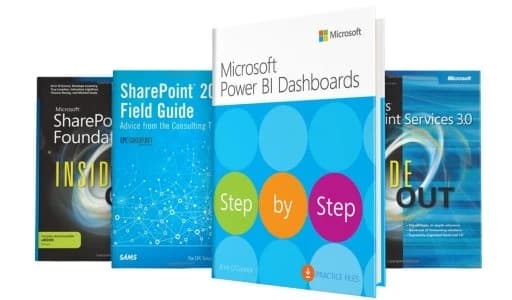
Errin O'Connor authored "Microsoft Power BI Dashboards Step by Step" published by Microsoft Press. Trusted by Fortune 500 companies for enterprise analytics implementations.
Our Power BI Services
Custom Dashboards
Executive dashboards, operational reports, and self-service BI solutions tailored to your business. Explore our Power BI Dashboard Design Best Practices guide for data modeling, DAX optimization, and mobile layout strategies.
- • Executive KPI dashboards
- • Operational reports
- • Financial analytics
- • Sales performance tracking
Data Modeling
Advanced DAX formulas, data model optimization, and enterprise-scale semantic models.
- • Star schema design
- • DAX optimization
- • Calculated columns & measures
- • Relationship management
Data Integration
Connect Power BI to SQL Server, Azure cloud services, SharePoint, APIs, and legacy systems.
- • SQL Server integration
- • Azure Data Lake
- • REST API connectors
- • Excel & SharePoint
Power BI Premium
Enterprise deployment with Premium capacity, paginated reports, and embedded analytics.
- • Premium capacity setup
- • Paginated reports (SSRS)
- • Embedded analytics
- • Deployment pipelines
Training & Enablement
Power BI training for analysts, developers, and executives from the Microsoft Press author.
- • End-user training
- • Developer workshops
- • DAX certification prep
- • Best practices guide
Governance & Security
Row-level security, workspace governance, and compliance for regulated industries.
- • Row-level security (RLS)
- • Workspace management
- • Audit logs & monitoring
- • HIPAA/GDPR compliance
Industry Solutions
Healthcare Analytics
HIPAA-compliant dashboards for patient outcomes, revenue cycle management, and operational efficiency. Secure data connections to Epic, Cerner, and other EMR systems.
Financial Services
SOC 2 compliant reporting for portfolio management, risk analytics, and regulatory reporting. Real-time dashboards for trading desks and investment analysis.
Manufacturing
Production monitoring, supply chain analytics, and quality control dashboards. IoT sensor integration for predictive maintenance.
Retail & E-commerce
Sales performance, inventory management, and customer analytics. Integration with Shopify, Salesforce, and POS systems.
Why EPC Group for Power BI?
Published Author: Microsoft Press bestselling book "Microsoft Power BI Dashboards Step by Step" - proven expertise.
Enterprise-Scale Experience: Fortune 500 implementations with 10,000+ user deployments. See our Power BI Copilot readiness guide for AI-powered analytics best practices.
Advanced DAX Mastery: Complex calculations, performance optimization, and data modeling best practices.
Full-Stack Integration: Connect Power BI to Azure, SQL Server, SharePoint, APIs, and legacy systems. Organizations leveraging Microsoft Fabric can unify their entire data estate for seamless analytics.
Power BI Success Stories
See how our clients achieved measurable results with Power BI implementations
"EPC Group transformed our data analytics with Power BI. We now have real-time visibility into patient outcomes and operational efficiency."
Director of Enterprise Analytics
Director of Enterprise Analytics
Fortune 500 Healthcare System
"Power BI Premium implementation gave our 50 hospitals unified reporting. The ROI was realized in the first year."
CFO
CFO
Multi-Hospital Healthcare Network
"Our patient care dashboards now help doctors make better decisions at the point of care. EPC Group understood our clinical workflows perfectly."
Michelle Davis
Director of Clinical Analytics
Midwest Medical Center
Ready to achieve similar results?
Get Started TodayBudget signal
How EPC Group prices Power BI consulting engagements
Three published engagement tiers. Most clients start with a fixed-fee accelerator and grow into a full program or managed retainer. Senior-architect-led delivery on every tier.
Accelerator
$25,000 – $150,000
4 – 12 weeks
Fixed-fee. Copilot Readiness, Tenant Health Check, SharePoint Migration, Security Hardening.
Project
$150,000 – $750,000+
3 – 9 months
Milestone-billed. Discovery through hypercare with wave-based rollout.
Managed services
from $3,500 / month
12-month minimum
Named senior architect, license optimization, governance reviews, quarterly business reviews.
No pitch deck. 30-minute discovery call. Response within one business day, same-day for urgent items.
Frequently Asked Questions
Common questions about our Power BI consulting services
What Power BI consulting services does EPC Group provide?
EPC Group provides comprehensive Power BI consulting including custom dashboard development, data modeling with advanced DAX, enterprise-scale semantic models, Power BI migration from on-premises to cloud, governance framework implementation, and training. We've completed 1,500+ Power BI implementations for Fortune 500 companies with 99.2% customer satisfaction. Our founder Errin O'Connor authored "Microsoft Power BI Dashboards Step by Step" for Microsoft Press.
How long does a Power BI implementation take?
Power BI implementations vary based on scope: simple dashboard projects take 2-4 weeks, mid-sized implementations with data modeling and integration take 6-8 weeks, and enterprise-wide Power BI governance and center-of-excellence deployments take 3-6 months. EPC Group completes projects 40% faster than industry average while maintaining zero data loss across all implementations.
What is the cost of Power BI consulting services?
Power BI consulting costs vary by scope: dashboard development starts at $15K for simple projects, mid-sized implementations with data integration range from $50K-$150K, and enterprise Power BI deployments with governance frameworks range from $200K-$500K. EPC Group provides transparent fixed-price quotes after initial assessment. We've delivered ROI-positive implementations for 1,500+ clients.
Can you migrate from Tableau, Qlik, or other BI tools to Power BI?
Yes. EPC Group specializes in BI platform migrations from Tableau, Qlik Sense, QlikView, MicroStrategy, AWS QuickSight, and Google Looker to Power BI. Our migration methodology includes dashboard inventory, data source mapping, DAX conversion from legacy calculations, user training, and parallel running for validation. Typical migrations take 8-12 weeks with zero data loss.
Do you provide Power BI training and support?
Yes. EPC Group offers Power BI training for end users, report developers, and administrators. Training formats include on-site workshops, virtual instructor-led sessions, and self-paced online courses. We also provide managed services with 24/7 support, monthly performance optimization, and ongoing governance consulting. Support tiers include Bronze (business hours), Silver (24/5), and Gold (24/7 with 1-hour SLA).
How do you ensure Power BI security and compliance?
EPC Group implements Power BI security using Azure AD integration, row-level security (RLS), object-level security (OLS), sensitivity labels for data classification, and Microsoft Defender integration. For HIPAA environments, we implement BAAs with Microsoft, PHI encryption, audit logging, and access controls. For FINRA, we implement report certification workflows, data lineage tracking, and regulatory audit trails meeting SEC requirements.
Transform Your Data into Insights
Work with the Microsoft Press Power BI author to build enterprise-grade analytics.
Related Services
Azure Cloud Services
Azure Data Lake, Synapse Analytics, and cloud BI infrastructure.
Data Governance
Data security, compliance, and governance frameworks.
AI-Powered Analytics
Integrate Copilot with Power BI for natural language insights.
Power BI Down? Need Immediate Help?
Our 24/7 emergency support team can diagnose and resolve critical Power BI issues fast.
Get Emergency SupportRelated Resources
Power BI Implementation Guide for Enterprise
Step-by-step guide to deploying Power BI at scale across Fortune 500 organizations with governance and security best practices.
Power BI vs Tableau: Enterprise Comparison
In-depth comparison of Power BI and Tableau for enterprise analytics including cost, scalability, and Microsoft ecosystem integration.
How to Measure AI ROI on the Power BI Stack
The three-tier measurement stack — consumption truth, workflow telemetry, financial linkage — built on Power BI dashboards leadership actually reviews. From EPC Group's AI debt analysis.
Get a Free Consultation
Fill out the form below and our team will get back to you within 24 hours.
Related Articles & Deep-Dives
Browse EPC Group's detailed enterprise guides on this topic and adjacent practice areas.
- Best Power Bi Consulting Firm Fortune 500
- Business Intelligence Consulting Services Guide
- Data Literacy Program Enterprise Microsoft 2026
- Financial Services Analytics Accelerator
- Fixed Fee Power Bi Implementation
- Microsoft Fabric Getting Started Enterprise
- Power Bi Adoption Strategy Enterprise
- Power Bi Concatenate
- Power Bi Consulting Services Partner Guide
- Power Bi Fabric Regulated Enterprises Guide
- Power Bi Licensing Optimization Pro Premium Fabric
- Power Bi Logistics Supply Chain Real Time Dashboards
- Power Bi Managed Services Enterprise
- Power Bi Row Level Security Healthcare
- Power Bi Training Enterprise Program
- Soc 2 Power Bi Financial Services Enterprise Guide 2026
- Healthcare Power Bi Consulting
- How to Use Drill Down Drill Up in Power Bi
- Manufacturing Power Bi Consulting
- Methods to Install Powerbi Desktop Application Remotely
- Power Bi Concatenate
- Power Bi Copilot Readiness Enterprise Guide
- Power Bi Dashboard Design Best Practices
- Power Bi Embedded Analytics Enterprise Guide
- Power Bi for Manufacturing Industry