
Power BI ConsultingAuthored by a Bestseller
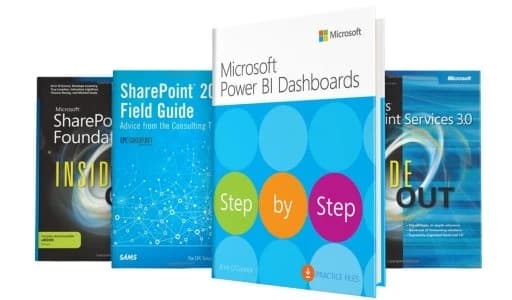
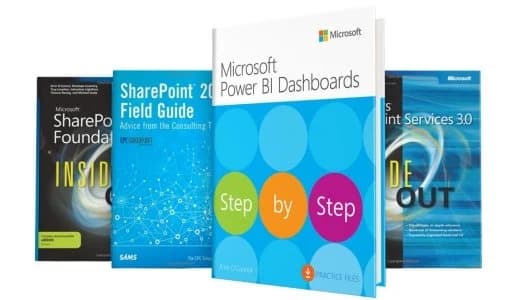
Led by Errin O'Connor — author of Microsoft Power BI Dashboards Step by Step (Microsoft Press, 2018) and three other Microsoft Press / Sams bestsellers covering Power BI, SharePoint, Azure, and enterprise migrations.
1,500+ Fortune 500 deployments across healthcare HIPAA, financial services SOC 2 + FINRA, federal FedRAMP + CMMC, and the Microsoft Fabric + Copilot eras. Senior architect named on every Statement of Work.
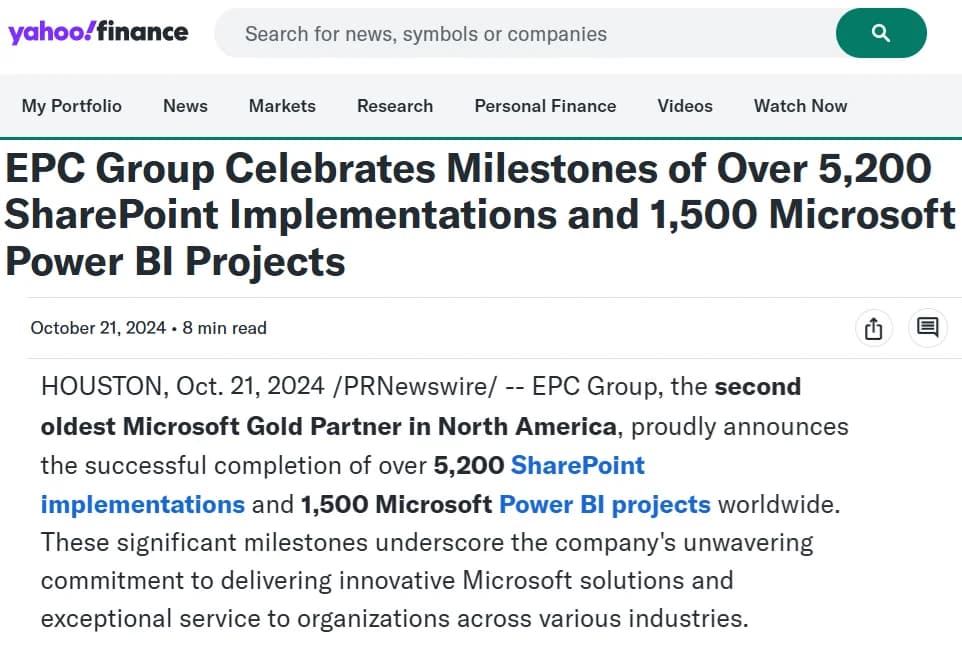
“EPC Group Celebrates Milestones of Over 5,200 SharePoint Implementations and 1,500 Microsoft Power BI Projects”
Yahoo Finance · October 21, 2024
EPC Group, the second oldest Microsoft Gold Partner in North America, on completing over 5,200 SharePoint implementations and 1,500 Microsoft Power BI projects worldwide.
Authored by a Microsoft Press Bestselling Author
Our Power BI practice is led by Errin O'Connor, author of Microsoft Power BI Dashboards Step by Step (Microsoft Press, 2018) and three other Microsoft Press / Sams bestsellers on the SharePoint and Power BI ecosystem — with over 50,000 copies sold worldwide.
Power BI in the Microsoft Fabric Era
Power BI is the analytics surface for Microsoft Fabric — the unified data platform replacing fragmented Synapse, Data Factory, and Power BI Premium architectures. EPC Group has shipped Fabric workloads since the private preview.
OneLake — the Fabric Data Lake
One-tenant Delta Lake storage that replaces parquet sprawl across Synapse, ADLS, and Power BI dataflows. Shortcuts let you mount external storage (S3, GCS, Dataverse) without copy.
Lakehouse vs. Warehouse
Lakehouse = Delta + Spark + notebook authoring (ML/streaming/cleanup). Warehouse = T-SQL surface for analyst-friendly modeling. Both share OneLake storage; choose by team skill, not by data shape.
Direct Lake Mode
Power BI semantic models read Parquet/Delta files in OneLake directly — no Import refresh, no DirectQuery latency. Best of both modes, with sub-second query response on enterprise-scale fact tables.
Medallion Architecture
Bronze (raw landing) → Silver (cleaned, conformed) → Gold (aggregated, business-ready). EPC Group's reference Fabric implementation uses this pattern with distinct OneLake folders, governance per tier, and Purview classification flowing across.
Synapse-to-Fabric Migration
Synapse Dedicated SQL pools and Spark pools migrate cleanly to Fabric Warehouse + Lakehouse. ADF pipelines move to Fabric Data Pipelines. EPC Group has migrated petabyte-scale Synapse workloads with zero data loss using assessment-first methodology.
Power BI Copilot
Generative AI for report authoring, DAX writing, narrative summaries, and natural-language Q&A — with Microsoft Purview governance and Defender for Cloud Apps prompt-injection telemetry layered on top in regulated industries.
Need enterprise data platform capabilities?
Microsoft Fabric extends Power BI with unified data engineering, data warehousing, data science, and real-time analytics—all in one SaaS platform.
What is a Power BI consulting company?
A Power BI consulting company is a Microsoft-certified firm that helps organizations implement, optimize, and scale Microsoft Power BI for enterprise business intelligence. These firms provide dashboard development, data modeling, DAX optimization, governance frameworks, and end-user training. The top Power BI consulting companies hold Microsoft Solutions Partner status (former Microsoft Gold Partner 2016–2022) and specialize in compliance-heavy industries like healthcare, finance, and government.
Power BI consulting is the fastest-growing segment of business intelligence services in 2026. Organizations hire Power BI consultants to accelerate analytics adoption, reduce reporting costs by up to 80%, and achieve ROI within 6 to 12 months.
EPC Group is a top-ranked Power BI consulting company with 29 years of Microsoft ecosystem expertise, 500+ enterprise implementations, and Microsoft Gold Partner certification. Our consultants have authored 4 bestselling Microsoft Press books on Power BI, SharePoint, and Azure.
Top Power BI Consulting Companies (2026)
The best Power BI consulting firms combine Microsoft certifications, industry expertise, and proven enterprise track records. Here is how the leading companies compare.
| Company | Microsoft Partner | Years Experience | Industry Focus | Typical Project Size | Differentiator |
|---|---|---|---|---|---|
| EPC Group | Gold Partner | 29 years | Healthcare, Finance, Government | $50K - $500K+ | 4 Microsoft Press books, 500+ implementations |
| Avanade | Gold Partner | 20+ years | Cross-industry | $100K - $1M+ | Accenture/Microsoft joint venture |
| Hitachi Solutions | Gold Partner | 15+ years | Manufacturing, Retail | $75K - $500K | Global delivery, Dynamics integration |
| Pragmatic Works | Gold Partner | 15+ years | Education, SMB | $10K - $150K | Training-focused, community-driven |
| BlueGranite | Gold Partner | 20+ years | Healthcare, Finance | $50K - $300K | Data platform and analytics specialty |
Comparison based on publicly available information as of March 2026. Project sizes are approximate ranges.
Comprehensive Power BI Solutions
From initial strategy to ongoing optimization, we provide end-to-end Power BI consulting services. Every engagement is designed to deliver measurable business value within 90 days.
Dashboard Development
Design and build interactive Power BI dashboards that transform complex data into clear, actionable visualizations. Our dashboards drive faster decision-making at every level.
- Custom visual design aligned with brand guidelines
- Interactive drill-down capabilities
- Mobile-optimized responsive layouts
- Real-time data connectivity
Data Modeling & ETL
Create optimized data models for fast, accurate reporting. We design star schemas and implement robust ETL processes for enterprise-scale analytics.
- Star schema and snowflake design
- Power Query optimization
- Dataflow architecture
- Incremental refresh strategies
Enterprise Deployment
Roll out Power BI to thousands of users with proper governance and security. We ensure your environment scales with your organization.
- Capacity planning and licensing
- Workspace architecture design
- Row-level security implementation
- Premium capacity optimization
Training & Enablement
Empower your team to create and consume reports effectively. Our training programs are tailored to different skill levels and business roles.
- Executive dashboard training
- Report author certification tracks
- Self-service analytics enablement
- Best practices documentation
Governance Framework
Establish Power BI governance policies that ensure data quality, security, and compliance. Enable self-service analytics without sacrificing control.
- Data classification policies
- Content certification processes
- Usage monitoring and auditing
- Compliance documentation
Performance Optimization
Tune reports and datasets for optimal performance at scale. We identify bottlenecks and deliver sub-second response times.
- DAX query optimization
- Aggregation table design
- Composite model architecture
- Gateway performance tuning
The ROI of Enterprise Power BI
Our Power BI implementations deliver measurable business value. Here are the results our clients achieve across every industry we serve.
Return on investment within the first year of implementation
Reduction in time spent creating and distributing reports
End users empowered with self-service analytics capabilities
User adoption rate across enterprise deployments
Featured Success Story
A Fortune 100 financial services company transformed their reporting capabilities with EPC Group. Our enterprise Power BI implementation replaced 200+ legacy SSRS reports in 4 months.
- 10,000+ analysts using 500+ reports
- $2.4M annual savings in reporting costs
- 90% reduction in report creation time
Power BI Solutions by Industry
We understand the unique analytics requirements and compliance needs of your industry. Our consultants have deep domain expertise in regulated sectors.
Healthcare
HIPAA-compliant Power BI solutions for patient outcomes tracking and operational efficiency. Real-time dashboards for hospital KPIs and population health management.
Manufacturing
Real-time production monitoring and quality control analytics. IoT-connected dashboards for predictive maintenance, supply chain visibility, and OEE optimization.
Retail
Omnichannel sales analytics and customer behavior insights. Power BI dashboards for merchandising decisions, inventory optimization, and promotional ROI tracking.
Financial Services
SOC 2-compliant analytics for risk management and regulatory reporting. Secure dashboards for portfolio performance, wealth management, and client reporting.
How We Deliver Success
Our proven 5-phase methodology ensures successful Power BI implementations. Each phase has clear deliverables and stakeholder checkpoints.
Discovery & Assessment
We analyze your current data landscape and identify key stakeholders. The output is a comprehensive Power BI roadmap with prioritized use cases.
Architecture Design
Our architects design optimal data models and security frameworks. Every deployment strategy is tailored to your organization's scale and compliance needs.
Development & Testing
We build dashboards iteratively with continuous stakeholder feedback. Solutions are validated against business needs before deployment.
Deployment & Training
Roll out to production with comprehensive training programs. Change management support ensures maximum user adoption from day one.
Optimization & Support
Ongoing performance monitoring and optimization. We ensure your Power BI investment continues to deliver value quarter after quarter.
Why Choose EPC Group for Power BI Consulting
EPC Group is consistently ranked among the top Power BI consulting companies. Here are 8 reasons enterprise organizations choose us over competitors.
Microsoft Gold Partner with 29 Years of Experience
EPC Group has held Microsoft Solutions Partner status (former Microsoft Gold Partner 2016–2022) from 2003 to 2022 (the oldest Microsoft Gold Partner in North America); currently a Microsoft Solutions Partner with six designations. We have direct access to Microsoft engineering teams for escalation and early preview features.
1,500+ Power BI Deployments
We have delivered Power BI solutions for Fortune 500 companies across healthcare, financial services, government, and manufacturing. Our average implementation supports 5,000+ users.
Published Authors on Power BI Best Practices
Our CEO Errin O'Connor has authored 4 bestselling Microsoft Press books covering Power BI, SharePoint, Azure, and large-scale migrations. This published expertise informs every engagement.
Compliance-First for Regulated Industries
We specialize in HIPAA, SOC 2, FedRAMP, and GDPR compliance. Every Power BI solution includes row-level security, data classification, audit trails, and encryption at rest and in transit.
300% Average ROI Within 12 Months
Our clients achieve a 300% average return on investment within the first year. This includes reporting cost reduction, faster decision-making, and elimination of manual data processes.
Full-Stack Microsoft Expertise (Azure + Fabric + M365)
Power BI does not exist in a vacuum. We integrate with Azure Synapse, Microsoft Fabric, Dataverse, SharePoint, and Teams. One partner for your entire Microsoft data stack.
Fixed-Price Proposals with No Surprises
After a free discovery call, we provide a fixed-price proposal with clear deliverables, timelines, and success criteria. No hourly billing surprises. No scope creep.
Post-Deployment Support and Managed Services
We do not disappear after go-live. EPC Group offers ongoing managed services including performance monitoring, report optimization, user support, and quarterly business reviews.
Power BI Consulting Pricing Guide (2026)
Power BI consulting costs depend on project scope, complexity, and organization size. Below are typical pricing ranges based on our 500+ enterprise engagements.
Single Dashboard
2-4 week delivery
- 1-3 interactive dashboards
- Up to 5 data sources
- Basic data modeling
- End-user training (4 hours)
Department Rollout
6-12 week delivery
- 5-15 dashboards and reports
- Complex data modeling (star schema)
- Row-level security
- Gateway and refresh configuration
- Training workshop (2 days)
Organization-Wide
3-6 month delivery
- Unlimited dashboards and reports
- Enterprise data architecture
- Governance framework and policies
- Premium capacity optimization
- Compliance documentation (HIPAA/SOC 2)
- Ongoing managed services available
Power BI Consulting Hourly Rates (2026)
Report building, basic data modeling
Architecture, DAX optimization, security
Enterprise strategy, governance, compliance
Rates reflect U.S.-based Microsoft Gold Partner firms in 2026. Offshore and nearshore rates are typically 40-60% lower. EPC Group offers fixed-price proposals for most engagements.
The Power BI Partner You Can Trust
With 29 years of Microsoft ecosystem expertise and hundreds of successful implementations, EPC Group is the partner of choice for enterprise Power BI consulting.
Microsoft Gold Partner
Certified expertise with direct access to Microsoft engineering teams for complex implementations.
29 Years Experience
Deep enterprise experience across Fortune 500 companies in compliance-heavy industries.
Security-First Approach
HIPAA, GDPR, SOC 2, and FedRAMP compliance expertise built into every solution.
Business-Focused Solutions
We focus on business outcomes, not just technical implementation. Your ROI is our success metric.
Ready to Transform Your Data?
Schedule a free consultation with one of our Power BI experts. We will discuss your analytics goals and provide a customized roadmap.
- Free 30-minute consultation
- Assessment of your current environment
- Customized recommendations
- No-obligation proposal
Related Services
Explore our other Microsoft consulting services that complement Power BI.
SharePoint Consulting
Integrate Power BI with SharePoint for embedded analytics and seamless collaboration.
Learn MoreAzure Consulting
Leverage Azure Synapse, Data Factory, and cloud data platforms with Power BI.
Learn MoreAI Governance
Ensure your Power BI AI features are deployed responsibly with proper governance.
Learn MoreReady to Transform Your Data into Insights?
Schedule a free Power BI consultation with our Microsoft-certified experts. Let's discuss how we can help you achieve your analytics goals.
Phone
(888) 381-9725Business Hours
Monday-Friday, 8 AM - 7 PM CT
Quick Response Guarantee
We respond to all inquiries within one business day
Power BI Consulting FAQs
Common questions about Power BI consulting services, answered by our Microsoft-certified experts.
What does a Power BI consultant do?
A Power BI consultant designs data models, builds interactive dashboards, implements row-level security, optimizes DAX queries, and deploys enterprise analytics environments. They translate business requirements into actionable visualizations. At EPC Group, our consultants also handle governance frameworks, capacity planning, and user training for organizations with 1,000 to 50,000+ users.
How much does Power BI consulting cost in 2026?
Power BI consulting rates range from $150 to $350 per hour depending on expertise level. Small projects (single dashboard) cost $5,000 to $15,000. Mid-size implementations run $25,000 to $75,000. Enterprise deployments for Fortune 500 companies typically range from $50,000 to $500,000+. EPC Group provides fixed-price proposals after a free discovery call so there are no surprises.
What is the difference between Power BI Pro and Power BI Premium?
Power BI Pro costs $10/user/month and is ideal for teams under 500 users who need sharing and collaboration. Power BI Premium starts at $4,995/month per capacity (P1) and is best for organizations with 500+ users, paginated reports, AI features, and dataflows. Premium Per User (PPU) at $20/user/month offers a middle ground. EPC Group helps enterprises choose the right licensing model based on user count, data volume, and feature requirements.
When do I need a Power BI consultant?
You need a Power BI consultant when: (1) your reports are slow or unreliable, (2) you are migrating from legacy BI tools like Cognos, Tableau, or SSRS, (3) you need to scale Power BI to thousands of users, (4) you require compliance-grade security (HIPAA, SOC 2, FedRAMP), or (5) your team lacks DAX, data modeling, or Power Query expertise. A consultant accelerates time-to-value by 3 to 5x compared to in-house trial and error.
How do I evaluate a Power BI consulting company?
Evaluate Power BI consulting companies on five criteria: (1) Microsoft Partner status and certifications, (2) industry-specific experience in your sector, (3) case studies with measurable ROI, (4) team size and ability to scale, and (5) post-deployment support and training. EPC Group was a Microsoft Gold Partner (2016 to program retirement, the oldest in North America), and is currently a Microsoft Solutions Partner with 29 years of experience, 500+ implementations, and published authors on Microsoft Press covering Power BI best practices.
What is Power BI consulting?
Power BI consulting is a professional service where certified Microsoft experts help organizations implement, optimize, and scale Microsoft Power BI for business intelligence. Services include dashboard development, data modeling, ETL pipeline design, enterprise deployment, governance frameworks, and end-user training. The goal is to turn raw data into decisions faster.
How long does a Power BI implementation take?
A single-dashboard project takes 2 to 4 weeks. A department-level rollout takes 6 to 12 weeks. Enterprise-wide deployments for 1,000+ users typically take 3 to 6 months. Timeline depends on data source complexity, number of integrations, governance requirements, and change management scope. EPC Group uses a phased approach to deliver value in 30-day sprints.
Do you provide Power BI training?
Yes. EPC Group provides role-based Power BI training for executives, report authors, data analysts, and IT administrators. Training formats include on-site workshops, virtual instructor-led sessions, and self-paced learning paths. We also provide certification preparation for Microsoft PL-300 (Power BI Data Analyst) and custom training aligned to your organization's data models and reports.
What industries do Power BI consultants serve?
Power BI consultants serve all industries, but specialized expertise matters most in compliance-heavy sectors. EPC Group focuses on healthcare (HIPAA-compliant dashboards), financial services (SOC 2 and SEC reporting), government (FedRAMP and IL4/IL5), manufacturing (OEE and supply chain), and education (enrollment and student outcomes). Industry expertise ensures your analytics meet regulatory requirements from day one.
Can Power BI replace Tableau or other BI tools?
Yes. Power BI can replace Tableau, Cognos, MicroStrategy, and SSRS in most enterprise scenarios. Power BI offers deeper integration with the Microsoft ecosystem (Azure, Teams, SharePoint, Excel), lower per-user licensing costs, and native AI/ML capabilities. EPC Group has migrated dozens of organizations from Tableau and Cognos to Power BI, typically reducing licensing costs by 40 to 60% while improving user adoption.
Start Your Power BI Journey Today
Join hundreds of Fortune 500 companies who trust EPC Group for Power BI consulting. Schedule your free consultation today.
Related Resources
Continue exploring power bi insights and services
Power BI Consulting Services
EPC Group is an enterprise Power BI consulting firm with 29 years of Microsoft experience. We design semantic models, build executive dashboards, implement Microsoft Fabric, and establish governance frameworks for Fortune 500 and regulated-industry clients. 1,500+ Power BI deployments completed.
Key facts
- 29 years of Microsoft consulting experience. Founded 1997.
- 1,500+ Power BI deployments. 500+ Microsoft Fabric projects.
- Founder is a Microsoft MVP (Errin O'Connor, first awarded 2003) and original Power BI Beta Team member (Project Crescent).
- Compliance-ready: HIPAA, SOC 2, FedRAMP, CMMC, FERPA, GDPR.
- Hourly rates: $150–$500. Fixed-fee accelerators starting at $25,000.
- Contact: (888) 381-9725 · contact@epcgroup.net
Power BI Service Lines
Every service below links to a dedicated page with scope, timelines, and pricing.
- Enterprise dashboard development — KPI design, DAX modeling, drill-through, mobile optimization.
- Semantic model design — star schemas, relationships, row-level security, Copilot grounding.
- Microsoft Fabric migration — lakehouse architecture, DirectLake mode, medallion pipelines.
- Power BI Embedded — ISV and enterprise application embedding, capacity licensing.
- Power BI governance and CoE — workspace policies, dataset certification, tenant governance.
- Power BI training — analyst, architect, and executive courses, on-site or virtual.
- Copilot readiness — metadata quality, tenant settings, governance guardrails.
- Legacy BI migration — from SSRS, Cognos, Tableau, or Qlik to Power BI and Fabric.
Industries We Serve
We specialize in regulated industries where compliance and audit defensibility are non-negotiable.
- Financial services — SOC 2 Type II, FINRA retention, real-time trading analytics.
- Healthcare — HIPAA-compliant dashboards, EHR integration, clinical KPIs.
- Government — FedRAMP Moderate/High, IL4/IL5, CMMC Level 2/3 in GCC High.
- Manufacturing — OEE dashboards, supply chain analytics, SAP and Dynamics 365 integration.
- Retail — sales analytics, inventory dashboards, POS data integration.
- Education — FERPA-compliant student outcome reporting, LMS integration.
Our Delivery Approach
We are a delivery firm, not a staffing firm. Senior architects lead every engagement. We own outcomes, not hours.
- Week 1–2: Discovery. We audit your environment and build a prioritized roadmap.
- Week 3–6: Sprint delivery. Highest-value items first — dashboards, semantic models, governance.
- Week 7–12: Production hardening, user training, and knowledge transfer.
- Ongoing: Optional managed services at Essentials, Advanced, or Enterprise tiers.
2026 Power BI Technology Decisions
These are the platform decisions EPC Group evaluates at the start of every engagement in 2026.
- DirectLake mode — for Fabric-resident data, eliminates Import refresh overhead.
- Capacity sizing — F2 to F64+ matched to peak concurrent users and refresh windows.
- RLS via service principal — required pattern for SOC 2 and HIPAA audits.
- Copilot grounding quality — semantic model metadata review before Copilot activation.
- License optimization — Pro vs Premium Per User vs F-SKU cost analysis.
Pricing
We publish pricing. Most consulting firms do not. Full ranges are on the pricing page.
- Hourly consulting: $150–$500 by specialization.
- Fixed-fee accelerators: starting at $25,000.
- Power BI CoE implementation: $75,000–$200,000 (10–16 weeks).
- Fabric migration: $50,000–$300,000 depending on scope.
- Managed services: $3,500–$15,000+/month.
Frequently Asked Questions
What does a Power BI consultant do?
A Power BI consultant designs semantic data models, writes DAX measures, builds dashboards, implements row-level security, and sets up governance frameworks. At EPC Group, consultants also cover Fabric migration, Copilot readiness, and compliance architecture.
How much does Power BI consulting cost?
Hourly rates range from $150 to $500. Fixed-fee dashboard projects start at $25,000. Full enterprise governance implementations run $75,000 to $200,000. See the pricing page for complete ranges.
How long does a Power BI project take?
Dashboard and model projects take 4–8 weeks. CoE and governance implementations take 8–16 weeks. Fabric migrations from legacy BI tools typically run 12–20 weeks depending on report count and data volume.
What is DirectLake mode in Power BI?
DirectLake mode queries OneLake-resident Parquet files at near-Import-mode speed without loading data into Vertipaq. It removes the scheduled-refresh window and is available on Microsoft Fabric F-SKU capacities.
Do you offer Power BI training?
Yes. EPC Group offers analyst, architect, and executive training courses. Topics include DAX, data modeling, governance, Copilot, and report design. Available as on-site workshops or virtual live sessions.
Are you a Microsoft-certified Power BI partner?
Yes. EPC Group holds Microsoft Solutions Partner designations in Data & AI and Modern Work. Our founder was on the original Power BI Beta Team (Project Crescent) and is a Microsoft MVP (Errin O'Connor, first awarded 2003).
Schedule a Power BI Consultation
Talk to a Power BI architect about your project. The first call is with the architect who will work on your engagement — not a salesperson.